Features
Every AccountingPipe feature, explained
A field-by-field tour of the product: how documents arrive, what the AI reads off them, what your rules can change, what you see at approval, and exactly what reaches your accounting software.
The pipeline, stage by stage
Four stages sit between a document arriving and an expense appearing in your books. Each one is covered in detail below.
Stage 1
Capture
Inbound email, mobile camera or direct upload, all landing in the same processing queue.
Stage 2
Extraction
Structured fields are read from the document: vendor, dates, currency, totals, tax and line items.
Stage 3
Rules and review
Your rules code the expense, then it waits for approval unless a rule clears it automatically.
Stage 4
Sync
The approved record is written to Xero or appended to Google Sheets with the document attached.
Capture: getting documents in
Capture is the step people abandon, so there is no single app you have to open. Every organisation gets its own address, and anything sent to it enters the pipeline.
A dedicated inbox address
Forward from any mail client, or set the address as the billing contact so suppliers send invoices straight in. Attachments and email bodies are both processed.
Mobile capture
Photograph a paper receipt at the till and email it straight in from your phone. It lands in the same queue, so nothing depends on remembering a jacket pocket later. Native iOS and Android apps are in development.
Bulk upload
Drag a folder of PDFs into the dashboard when you are catching up on a backlog. Each file is processed independently, so one bad scan never stalls the batch.
Sender controls and quarantine
Decide who is allowed to email your address. Anything from an unrecognised sender is held in quarantine for you to approve or reject rather than processed silently.
Original documents kept
The source file and the email it arrived in are both retained, viewable as HTML or PDF, so the evidence behind every expense is one click from the record.
Reprocessing
Changed a rule or fixed a connection? Push a document through the pipeline again without asking anyone to resend the original.
Extraction: what the AI reads
Extraction returns structured fields, not a picture with a note attached. That is the difference between a document store and an expense record you can actually post.
Header fields
Vendor name, invoice or receipt number, issue date, due date, subtotal, tax and total are read from any layout, with no per-supplier templates to configure first.
Line items
Individual lines with description, quantity and price are captured too, which is what makes splitting a bill across jobs or cost centres possible later.
Tax and currency
Tax amounts and rates are separated from the net, and foreign-currency documents keep their original currency so your accounting software applies the right treatment.
Smart vendor matching
The extracted vendor is matched against the contacts already in your accounting system, and a new contact can be created from the document when there is genuinely no match.
Most documents finish extraction in under a minute. You still see every value, next to the original document, before anything is posted.
Rules: coding without the clicking
Rules run between extraction and approval, so they act on real values from the document rather than on guesses made in advance.
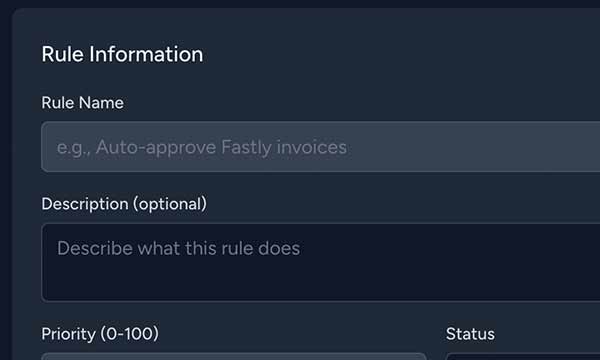
Custom processing rules
Match on vendor, amount or line item text, then set the expense category, account code and approver automatically. Rules are ordered, so the most specific one can win.
- Auto-assign expense categories
- Set default GL codes
- Route to specific approvers
- Auto-approve trusted vendors under a threshold
Review and approval
Approval is the one step you control: you review each document, or turn on auto-approval for the vendors and rules you trust. Review is built to take seconds per document.
Side-by-side review
Extracted fields sit next to the original document, so checking a total means glancing across rather than opening a second window.
Editable before it posts
Correct any field at review time. What you approve is what syncs. Nothing reaches your accounting software before you approve it, unless you have enabled auto-approval for that vendor or rule.
Status you can track
Every document carries a state: processing, awaiting approval, approved, synced or failed, with sync errors surfaced instead of buried.
Teams and multiple organisations
One login can carry as many businesses as you look after, with data kept strictly separate between them.
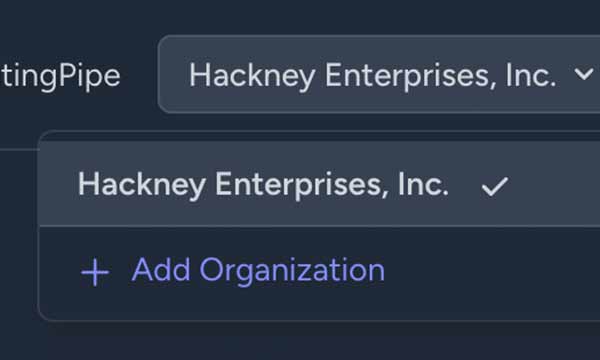
Multi-organization support
Switch between organisations instantly. Each one has its own inbox address, its own rules, its own accounting connection and its own members.
- Unlimited organizations
- Separate integrations per org
- Role-based access for members and invitees
Sync: what reaches your books
Approval is the trigger. From there the record is written to whichever destination the organisation is connected to.
Xero
Bills and spend money transactions with the contact matched, account code applied, tax preserved and the source document attached to the record.
See the Xero integration in detailGoogle Sheets
One row per approved receipt in a spreadsheet you own, with your own column mapping. Useful for reporting or where no accounting platform is involved at all.
See the Google Sheets integration in detailQuickBooks Online (coming soon)
QuickBooks Online sync is not available yet. Everything up to the sync stage already works, so a connection can be added to an existing account later.
Check the integrations roadmapQuestions about the features
What document types can AccountingPipe read?
Can I edit the data the AI extracts?
Do processing rules run before or after extraction?
How does vendor matching handle a supplier I have never used?
Are features limited by plan?
Read the full AccountingPipe FAQ for billing, security and account questions, or see which plan includes what.
Try these features on your own receipts
A 7-day free trial with up to 50 documents and no credit card required.